
10 KiB
Install the app
To get started, choose your operating system where you want to install the app:
Windows
AI Studio is only available for modern 64-bit Windows systems. When you have an older 32-bit system, you won't be able to run the app. We require an updated Windows 10 or 11 version; the app won't properly work on Windows 7 or 8. Next, we have to figure out if you have an Intel/AMD or a modern ARM system on your Windows machine.
-
Copilot+ PC: Do you own one of the new Copilot+ PCs? If so, you most likely have an ARM system. When your machine has a Qualcomm sticker on it, you have an ARM system for sure. Download the ARM version of AI Studio.
-
Windows on macOS: Do you run Windows using Parallels on an Apple Silicon system (M1, M2, M3, M4)? Then you have an ARM system as well. Download the ARM version of AI Studio.
-
Intel/AMD: In almost all other cases, you have an Intel/AMD system. Download the x64 version of AI Studio.
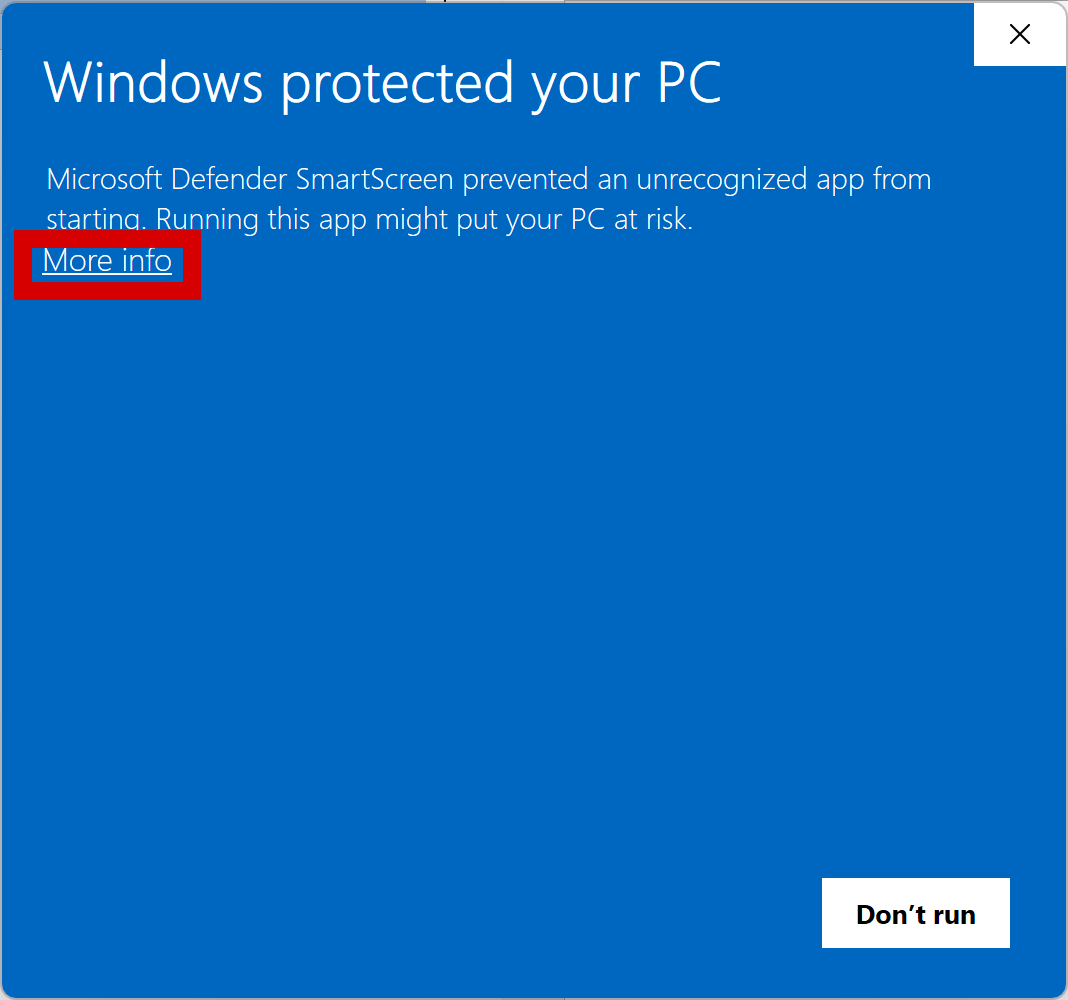
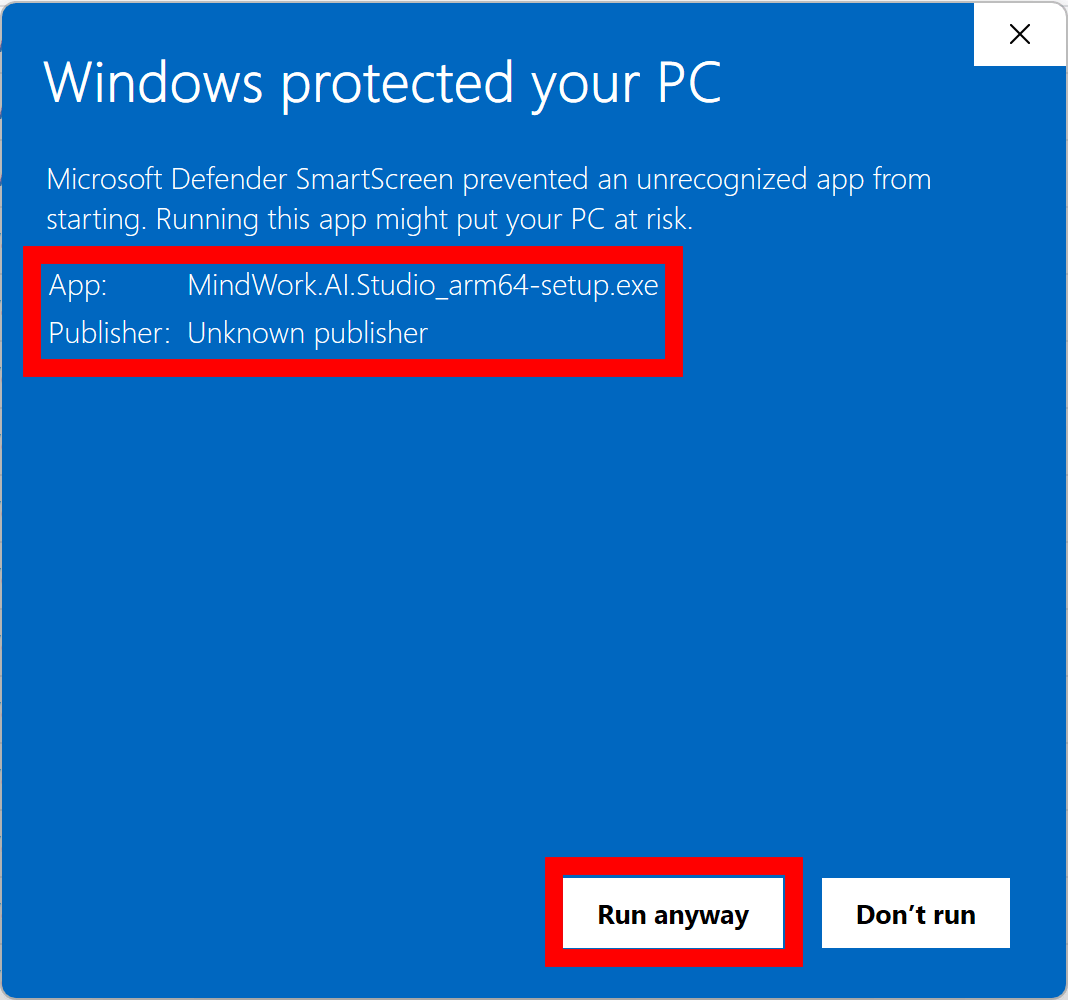
When you try to install the app, you get a message regarding protection of your PC (see screenshots below). For Windows to trust our app, we need to purchase a certificate that costs around $1000 per year. Would you like to help us with this? Please consider supporting us. You might want to visit our release page. There, we provide VirusTotal scan results for each release. If you are unsure about the safety of the app, you can check the results there. Ensure that the majority of scanners have a green checkmark.
When you are confident in the app's safety, click on "More info" and then "Run anyway" to proceed with the installation:
Once the app is installed, it will check for updates automatically. If a new version is available, you will be prompted to install it.
macOS
AI Studio is available for modern 64-bit macOS systems. The minimum requirement is macOS 10.13 (High Sierra). Next, we have to figure out if you have an Intel or a modern Apple Silicon (ARM) system.
-
Apple Silicon: Do you have a modern Apple Silicon system (M1, M2, M3, M4)? Download the ARM version of AI Studio.
-
Time of purchase: Did you buy your Mac in 2021 or later? Then you probably have an ARM system. Download the ARM version of AI Studio.
-
Check System Information: On your macOS, click on the Apple logo in the top left corner, then "About This Mac." In the window that opens, you can see the processor type. When it says "Apple M1" or similar, you have an ARM system. Download the ARM version of AI Studio.
-
Intel: Older Macs have an Intel processor. Download the Intel version of AI Studio.
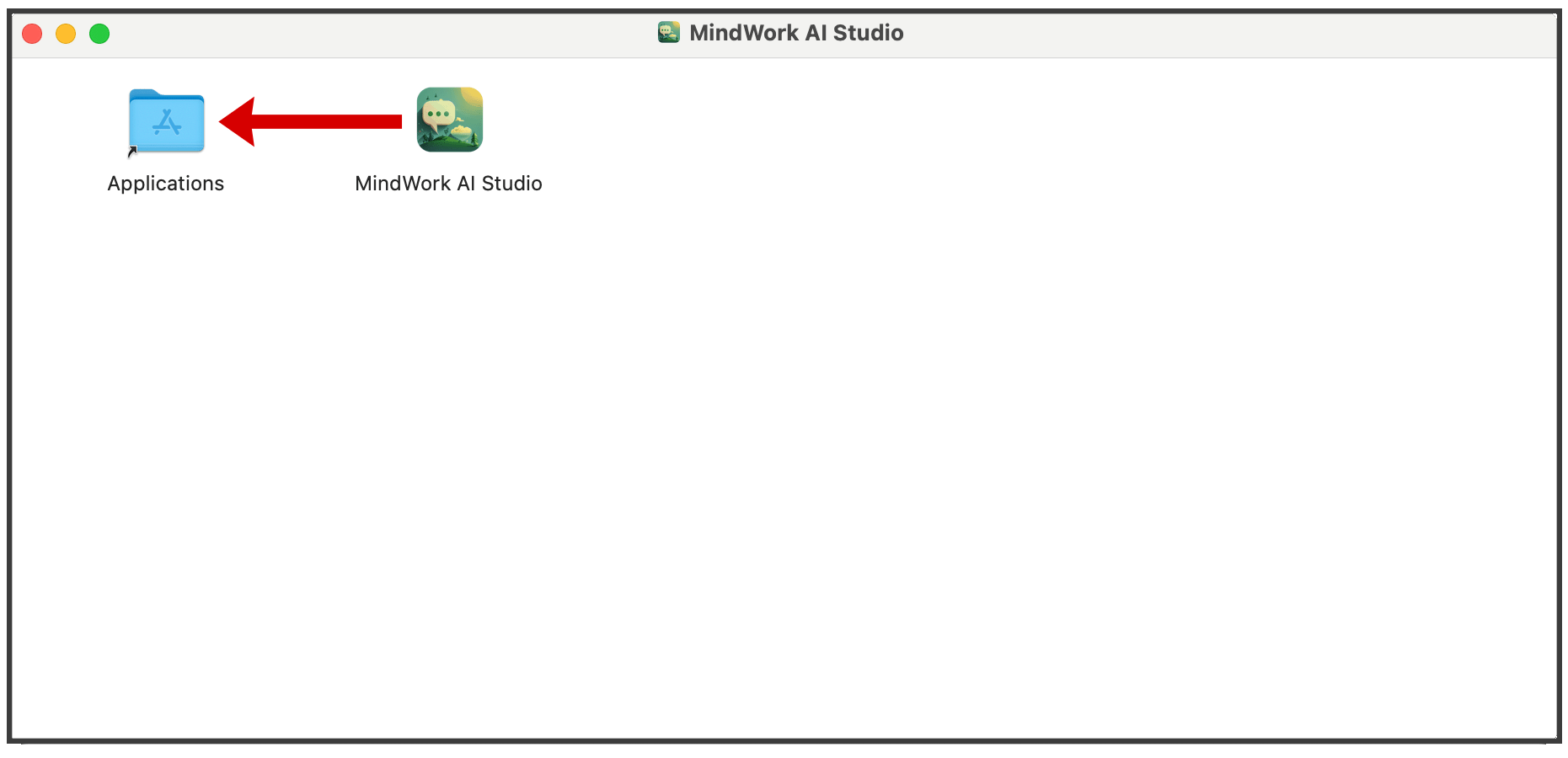
After downloading the file, open the DMG file and drag the app to your Applications folder:
When you try to open the app, you get a message that the app is damaged:
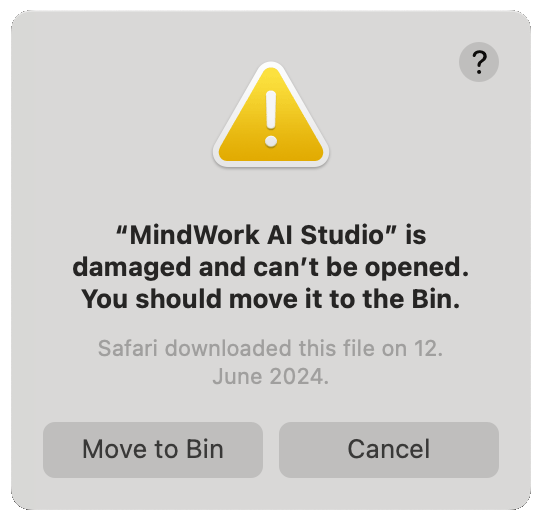
This is because we don't have an Apple Developer account, which costs around $100 per year. Would you like to help us with this? Please consider supporting us. You might want to visit our release page. There, we provide VirusTotal scan results for each release. If you are unsure about the safety of the app, you can check the results there. Ensure that the majority of scanners have a green checkmark.
When you are confident in the app's safety, follow these steps:
- Start the Terminal app. Just use Spotlight (Cmd + Space) and type "Terminal."
- Open your Finder and navigate to the Applications folder.
- Find the MindWork AI Studio app.
- Type this command:
xattr -r -d com.apple.quarantine(with a space at the end). - Drag the MindWork AI Studio app from the Finder into the Terminal window. The path to the app will be added to the command automatically.
- The final command should be:
xattr -r -d com.apple.quarantine "/Applications/MindWork AI Studio.app". Press Enter. - Now, you might close the Terminal app and the Finder.
The AI Studio app should now open without any issues. Once the app is installed, it will check for updates automatically. If a new version is available, you will be prompted to install it.
Linux
MindWork AI Studio is available for modern 64-bit Linux systems. Starting with release v26.7.3, Flatpak is the recommended installation method. We test AI Studio on Ubuntu 24.04 and 26.04, Kubuntu 24.04, Fedora 43 or newer, and openSUSE Leap 16 or newer, but it should work on other distributions as well.
First, determine whether your system uses the Intel/AMD or ARM architecture:
uname -m
x86_64 means Intel/AMD; aarch64 means ARM.
Recommended: Flatpak Installation
On Ubuntu, install Flatpak first:
sudo apt update
sudo apt install flatpak
For other Linux distributions, follow the official Flatpak setup instructions.
Open the latest AI Studio release and download the bundle for your architecture:
- Intel/AMD (
x86_64):MindWork.AI.Studio_x86_64.flatpak - ARM (
aarch64):MindWork.AI.Studio_aarch64.flatpak
Install the downloaded bundle for your user account. For Intel/AMD, run:
cd ~/Downloads
flatpak install --user ./MindWork.AI.Studio_x86_64.flatpak
For ARM, run:
cd ~/Downloads
flatpak install --user ./MindWork.AI.Studio_aarch64.flatpak
Confirm the installation of the required GNOME runtime from Flathub when Flatpak asks for it.
Pandoc Extension (Strongly Recommended)
Pandoc is required for essential file features, including regular file attachments in chats, importing and converting Office documents, and other document-based functionality. We therefore strongly recommend installing the Pandoc extension. AI Studio checks whether a compatible Pandoc version is already available.
For Intel/AMD, download MindWork.AI.Studio.Plugin.Pandoc_x86_64.flatpak and run:
cd ~/Downloads
flatpak install --user ./MindWork.AI.Studio.Plugin.Pandoc_x86_64.flatpak
For ARM, download MindWork.AI.Studio.Plugin.Pandoc_aarch64.flatpak and run:
cd ~/Downloads
flatpak install --user ./MindWork.AI.Studio.Plugin.Pandoc_aarch64.flatpak
Starting and Updating the Flatpak
Start AI Studio from your application menu or run:
flatpak run org.MindWorkAI.AIStudio
If no application-menu entry appears, sign out of your desktop session completely and sign in again, or restart the system.
Until AI Studio is published on Flathub, bundles installed from GitHub do not receive automatic app updates. Download each new bundle and reinstall it. For Intel/AMD, run:
cd ~/Downloads
flatpak install --user --reinstall ./MindWork.AI.Studio_x86_64.flatpak
Use MindWork.AI.Studio_aarch64.flatpak instead on ARM.
Alternative: AppImage Installation
If you prefer not to use Flatpak, AI Studio is also available as an AppImage:
- Intel/AMD: Download the Intel/AMD AppImage.
- ARM: Download the ARM AppImage.
Prepare the AppImage using the desktop environment:
- Download the AppImage from the link above.
- Open your file manager and navigate to the Downloads folder.
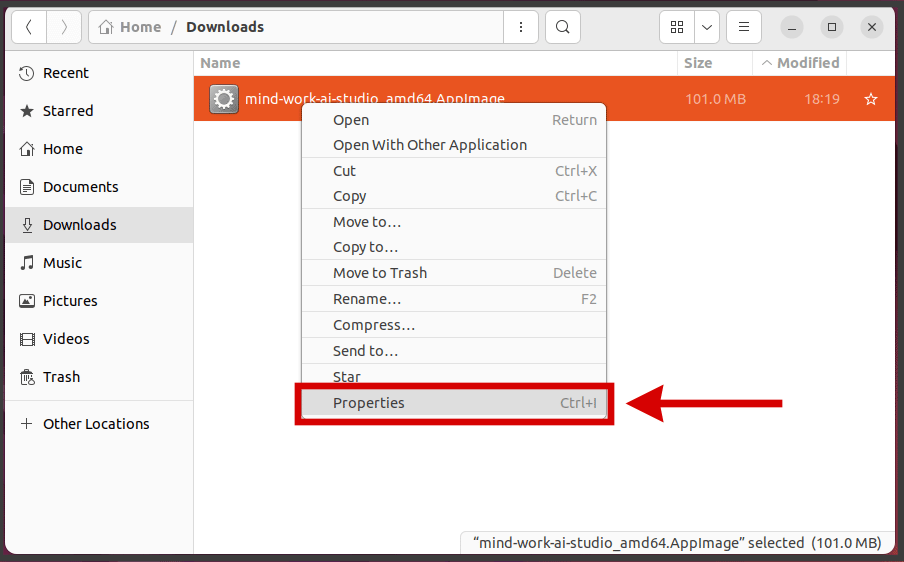
- Right-click on the AppImage and select "Properties":
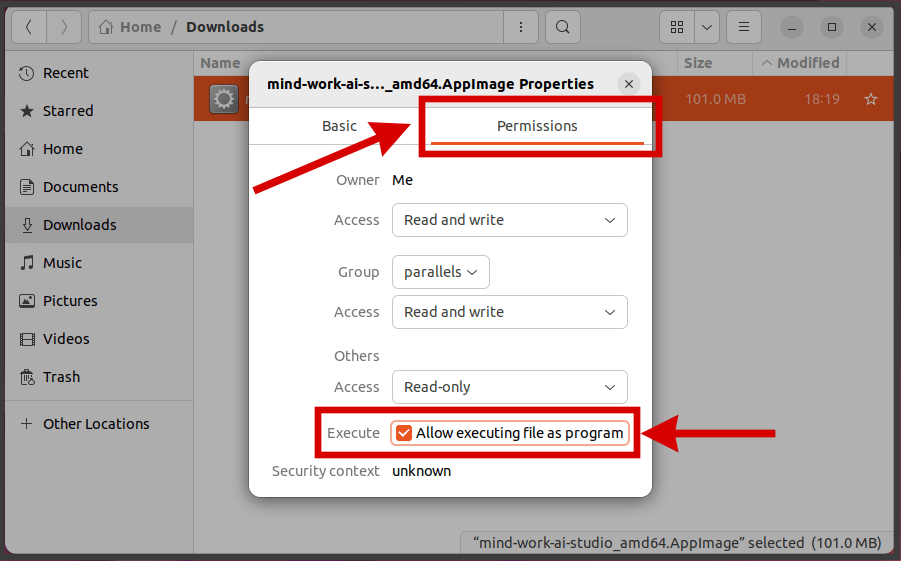
- Go to the "Permissions" tab and check the box "Allow executing file as program":
- Close the property window.
- You might want to move the AppImage to a more convenient location, e.g., your home directory.
- Double-click the AppImage to run it.
Prepare the AppImage using the terminal:
- Download the AppImage from the link above.
- Open a terminal and navigate to the Downloads folder:
cd ~/Downloads. - Make the AppImage executable:
chmod +x mind-work-ai-studio_amd64.AppImage. - You might want to move the AppImage to a more convenient location, e.g., your home directory:
mv mind-work-ai-studio_amd64.AppImage ~/. - Now you can run the AppImage from your file manager (double-click) or the terminal:
~/mind-work-ai-studio_amd64.AppImage.
Use the aarch64 file name instead of the amd64 file name on ARM systems.
Secure Storage for API Keys
On Linux, AI Studio stores API keys through the FreeDesktop Secret Service API. A compatible password manager must provide this service, and it must have an unlocked default collection. AI Studio never creates, selects, unlocks, or changes a password manager's default collection itself.
Compatible configurations include:
- GNOME Keyring, which can be managed with an application such as Seahorse. Create a password collection if necessary, unlock it, and choose Set as default.
- KeePassXC with Secret Service integration enabled and a database group exposed to the service. Keep the relevant database and group unlocked when AI Studio needs to access secrets.
Automatic login can prevent GNOME Keyring from being unlocked automatically. If secure storage remains locked after login, unlock the default collection in your password manager.